ITSI-SU
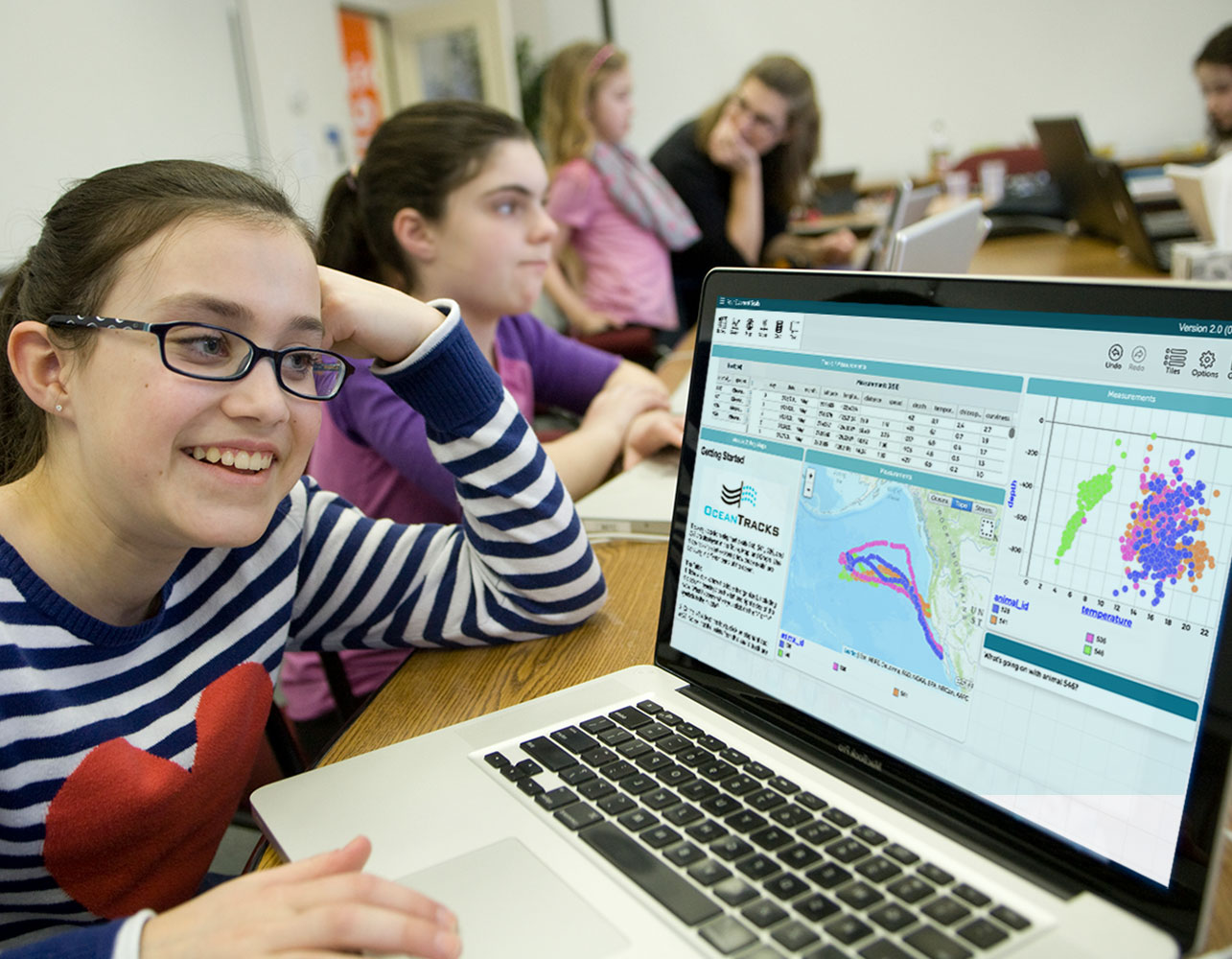
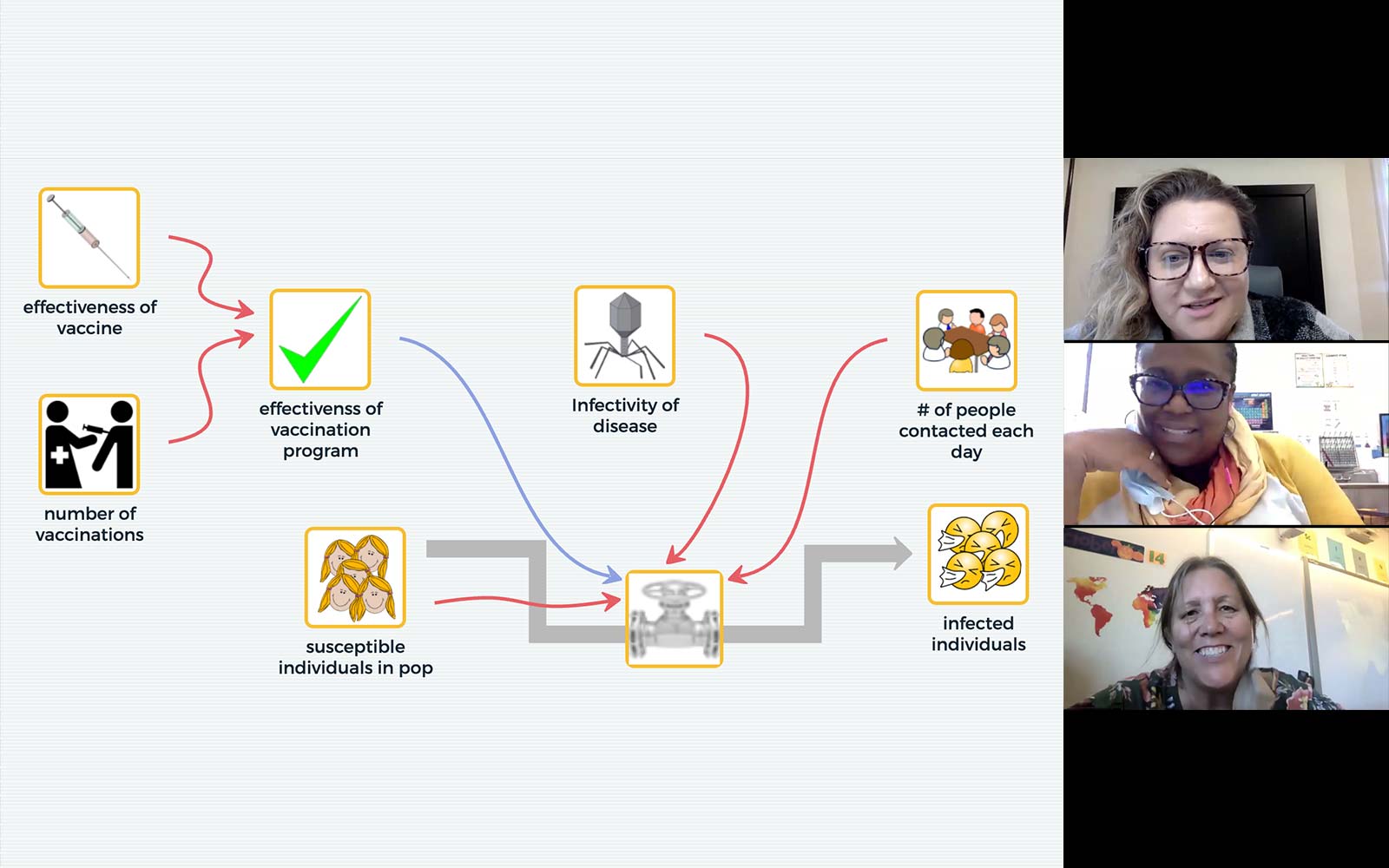
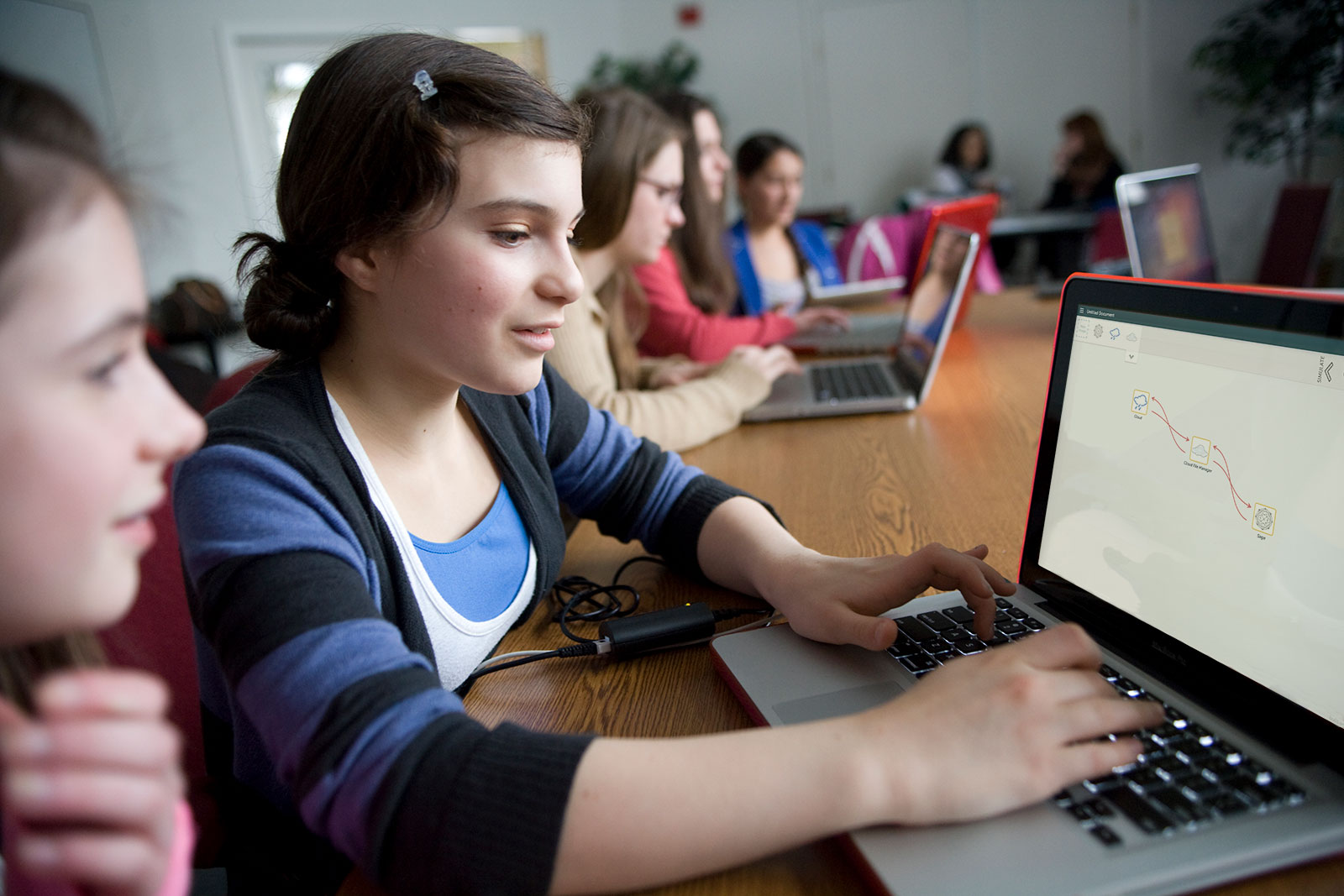
ITSI-SU is a scale up of the highly successful ITSI project and is meant to reach a greater number of elementary, middle and high school science teachers. This comprehensive innovative technologies (IT) project will assist teachers in preparing diverse students for careers in IT by engaging them in exciting, inquiry-based science projects that use computational models and real-time data acquisition.
Project Portal
View and launch our full set of activities for this project at the ITSI-SU portal.
The Concord Consortium is proud to announce the Innovative Technology in Science Inquiry Scale Up (ITSI-SU) project funded by the National Science Foundation!
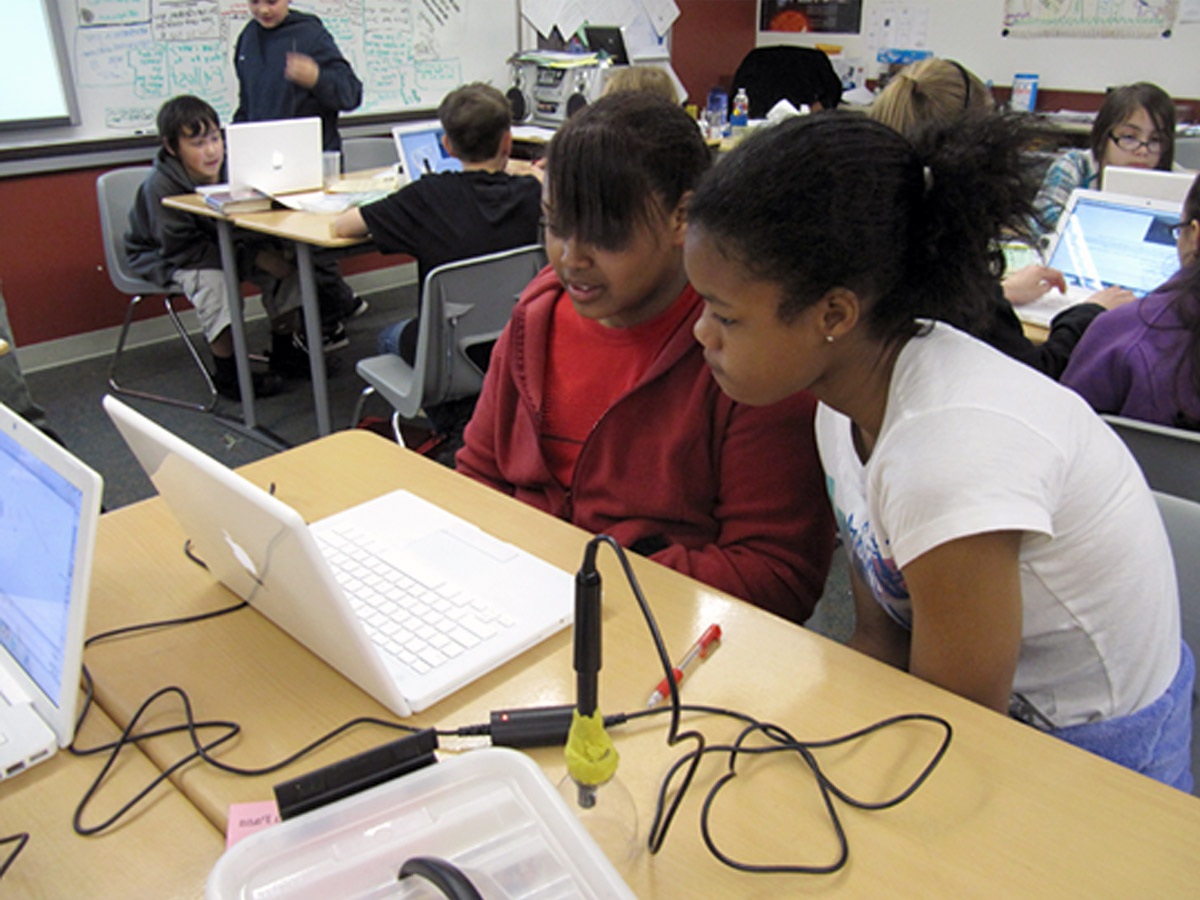
ITSI-SU is a scale up of the highly successful ITSI project and is meant to reach a greater number of elementary, middle and high school science teachers. This comprehensive innovative technologies project will assist teachers in preparing diverse students for careers in STEM (science, technology, engineering, and mathematics) by engaging them in exciting, inquiry-based science activities that use computational models and real-time data acquisition.
Students are engaged in practices that are essential for learning science and engineering through both inquiry and design. All of the STEM activities involve asking questions and/or defining problems, using models or sensors, collecting data, interpreting results, using mathematics, technology and computational thinking, constructing explanations and/or designing solutions based on evidence.
Participating research teachers are a part of an online educational community where they have access to outstanding science exemplars. They are able to create and modify activities based on their own curriculum and objectives. They receive over 75 hours of lab-based activities in engineering, physical, earth, and life sciences for grades 3-12 and full support for classroom implementation.
The portal is open and available to all. If you have any questions please contact itsisu@concord.org.
Share This
Activity Spotlight
Making Heat
Does change in concentration change the amount of heat released in a chemical reaction?
Learn MoreOne of the exciting things about this opportunity is the chance to be involved throughout the entire process of initiating, implementing and incorporating the concept embodied in this project. The future of technology, the Internet, and the use of computers in the classroom will be nothing less than spectacular. The impact a project such as this could have on education in the \'global village\' is enormous.
Beginning in the summer of 2011, research on ITSI-SU focuses on four questions:
- Did students using ITSI-SU materials increase their understanding of standards-based content?
- To what extent is there evidence of inquiry-based teaching in the classroom?
- Does the professional development design influence student learning?
- Did students using ITSI-SU materials have increased interest in STEM, in STEM careers, and in the use of technology-based STEM tools?
Data to answer the questions come from multiple sources. There are pre- and post-tests for students for each of the ITSI-SU units. A modified version of the Relevance of Science Education (ROSE) survey is being administered before and after students use ITSI-SU materials. Student data are logged as they use the ITSI-SU materials, providing another source of data.
The independent variables include the school, grade level of the students, amount of use of the materials, and others. The dependent variables are student content gains, inquiry gains, changes in STEM interest, and changes in STEM career aspirations.
We have also done research looking at the effectiveness of our professional development, specifically examining the benefits of blended professional development with both face-to-face and online components. This research is included in our paper "Integrating Online and Face-to-Face Professional Development: A Social Networking Approach," which was presented at the NARST 2013 annual meeting.
Units
Download the PDF version of this page to print
High School
| Course | M/P | Status | Topic | Unit | # | Model/Probe | Investigate… |
| Physics | M/P | C/T | Kinematics | Collisions | 4 | MW/Temp/Forces | Force and collisions |
| M | C/T | Electricity | Ohm's Law | 3 | PhET | The atomic representation of current & | |
| M | C/T | Dynamics | Ramps & Friction | 2 | PhET | Acceleration on a ramp | |
| M/P | C/T | Waves | Sound waves | 5 | PhET/Microphones | The wave nature of sound | |
| M | C/T | Light-matter Interactions | Light and matter | 2 | MW model/PhET | Energy levels and light spectra | |
| M/P | C/T | Magnetism | Magnetic Fields | 2 | PhET/Voltage | Magnetic fields near magnetics and wires | |
| Chemistry | M | C/T | Phase Change | Global Warming | 3 | NetLogo | Reactions in the atmosphere |
| M | C/T | Chemical Reactions | Stoichiometry | 2 | MW | Atomic connections to stoichiometry | |
| M/P | C/T | Bonding | Driving forces of reactions | 3 | MW/Temp | Le Chatelier's Principle | |
| M/P | C/T | Solutions | Dissolving | 3 | MW/Temp | A model of dissolving | |
| M/P | C/T | Heats of Reaction | Heats of Reaction | 3 | MW/Temp | Temperature changes during reaction | |
| Biology | M | C/T | Protein Form & Function | Protein structure | 2 | MW | DNA sequences and the shape of proteins |
| M | C/T | Population Genetics | Evolution | 3 | NetLogo | Natural selection and evolution | |
| P | C/T | Homeostatis | Body Temperature | 2 | Temp | Body temperature under different conditions | |
| M | C/T | Population Growth | Population Growth | 3 | NetLogo | Various population and predation models | |
| M | C/T | Ecosystems | Ecosystems | 3 | NetLogo | Indicators of ecosystem health |
Middle School
| COURSE | M/P | Status | TOPIC | ACTIVITY | # | MODEL/PROBE | INVESTIGATE… |
| Earth Science | M | C/T | Minerals | Intro to Crystals | 2 | MW | The effect of heating and cooling on crystals |
| M/P | C/T | The Atmosphere | Global Warming | 3 | NetLogo/Temp | The Greenhouse Effect | |
| M | C/T | Earthquakes | Seismic waves | 3 | Seismic Eruption | Earthquakes/volcanic plots for past eruptions | |
| P | C/T | Phase Change | Water cycle | 4 | Temp | The effect of temperature on states of water | |
| M | C/T | Solar System | Planetary orbits | 4 | PhET/NetLogo | Kepler's Law | |
| P | C/T | Weather | Monitoring weather | 2 | Temp | Tracking weather changes | |
| Physical Science | M/P | C/T | Thermodynamics | Heat & Temp | 2 | MW/Temp | Heating and cooling of liquids |
| M/P | C/T | Phase Change | Phase Change | 3 | MW/Temp | Phase change at the atomic level | |
| P | C/T | Waves | Sound | 4 | Microphone | The properties of sound | |
| P | C/T | Kinematics | Motion | 3 | Motion | Velocity and acceleration | |
| M | C/T | Molecular Motion | Diffusion | 3 | MW | Diffusion and osmosis | |
| P | C/T | Energy | Energy Conversions | 4 | Temp/Voltage | Ways various forms of energy are exchanged | |
| Life Science | M | C/T | Macromolecules | Tree of Life | 3 | MW | The function of different kinds of molecules |
| M | C/T | Genetics | Inheritance | 1 | BioLogica™ | Inheritance of dragons | |
| P | C/T | Plant respiration | Transpiration | 2 | Rel. Humidity/Light | The relationship between light and photosynthesis | |
| P | C/T | Human physiology | Human Response | 3 | Temp/Voltage | Galvanic skin response | |
| M | C/T | Ecosystems | Population Growth | 3 | NetLogo | Various population and predation models | |
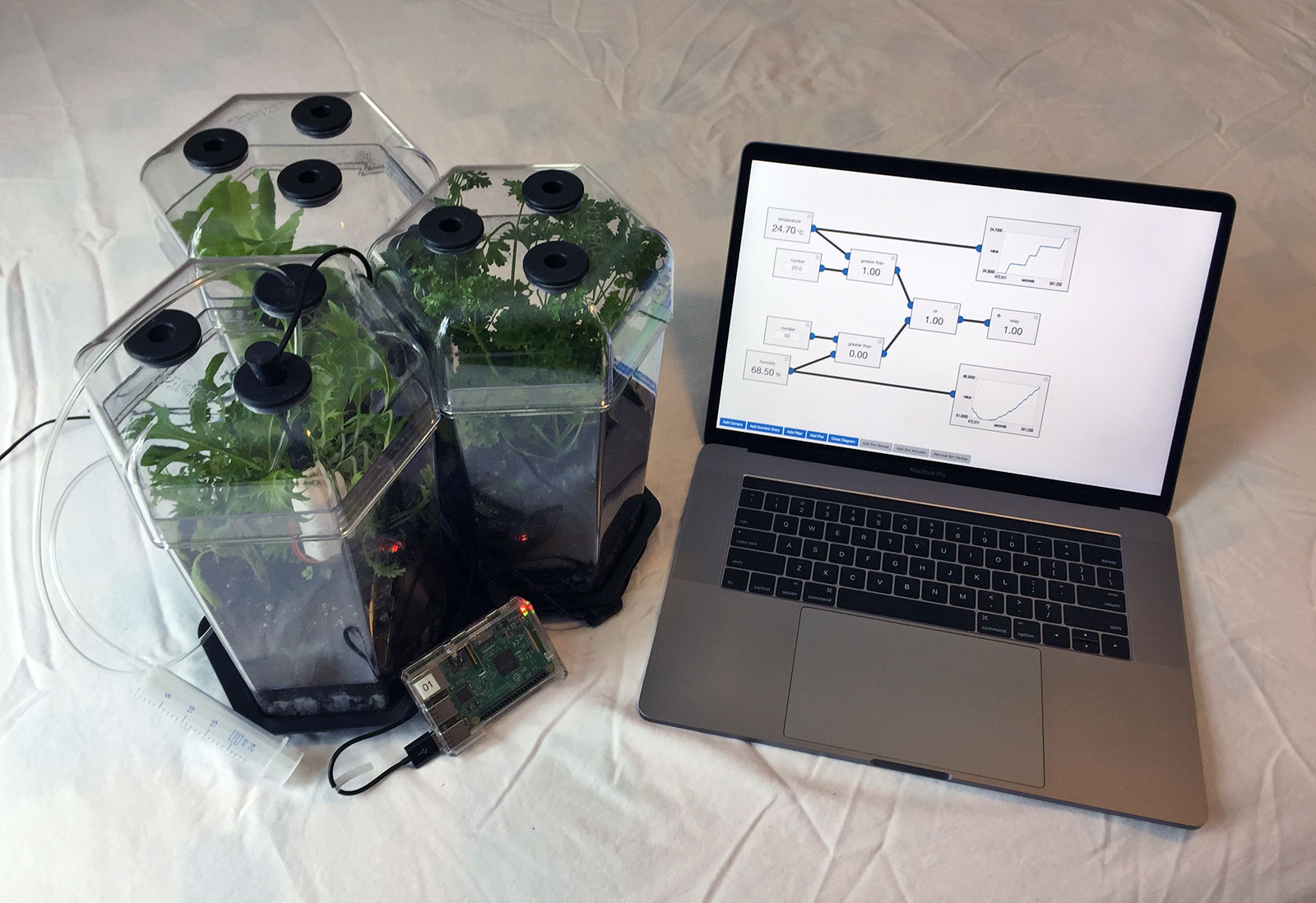
| P | C/T | Ecosystems | Greenhouse | 4 | Light/Temp | Design and monitoring of a working greenhouse |
Upper Elementary School (grades 5-6)
| COURSE | M/P | Status | TOPIC | ACTIVITY | # | MODEL/PROBE | INVESTIGATE… |
| Earth Science | P | T/P | Seasons | Sunlight and Temperature | 6 | Light/Temp | The relationship of distance and tilt of the earth on the seasons |
| M/P | T/P | Earth System | Heating with Sunlight | 5 | NetLogo/Temp/Light | The heating of the Earth's surface with sunlight | |
| M/P | C/T | Phase Change | Water Cycle | 5 | MW/NetLogo/Rel.Humidity | Evaporation, condensation, & freezing of water | |
| Physical Science | P | C/T | Energy | Temp of Mixing Water and Air | 6 | Temp | Temperature changes when fluids are mixed |
| P | T/P | Simple Machines | Levers & Pulleys | 5 | Force | Lifting with levers and pulleys | |
| M/P | C/T | Motion & Forces | Friction | 4 | Force/MW/Temp | Frictional effect on matter | |
| M/P | T/P | Motion & Forces | Movement | 5 | Motion/Camera/PhET | The motion of objects, including humans | |
| M/P | C/T | Electricity | Testing Circuits | 5 | Voltage/NetLogo/PhET | Parallel and series circuits | |
| Life Science | M/P | C/T | Ecosystem | Monitoring a Living Plant | 5 | NetLogo/Rel.Humidity/Camera | Basic needs of plants |
| P | T/P | Design/Technology | Design a Greenhouse | 6 | NetLogo/Rel.Humidity/Camera | Building & monitoring a working greenhouse | |
| M | T/P | Ecosystem | Food Web | 3 | NetLogo | Relationships between producers & consumers |
Elementary School (grades 3-4)
| COURSE | M/P | Status | TOPIC | ACTIVITY | # | MODEL/PROBE | INVESTIGATE… |
| Earth Science | P | T/P | Weather | Journaling Weather | 6 | Temp/Rel.Humidity/Camera | Daily weather conditions |
| M | T/P | Environment | Water Cycle | 4 | Flash | The formation of clouds | |
| M/P | T/P | Properties of Materials | Erosion | 3 | NetLogo/pH/Camera | Changes in land forms | |
| Physical Science | P | C/T | Sound | Making Music | 5 | Microphone | The properties of sound |
| M | C/T | Electricity | Static Electricity | 2 | PhET | The behavior of like and unlike charges | |
| P | C/T | Electricity | Circuit Building | 4 | Voltage/Genecon | Building & testing of a simple circuit | |
| P | T/P | Design & Technology | Playground Design | 6 | Force/Motion | Building & test of models of playground equipment | |
| P/M | C/T | Balance & Motion | Friction | 5 | Force/Flash/Camera | Pulling & pushing objects on various surfaces | |
| Life Science | P | T/P | Human Body | Sensing | 5 | Temp/Light | How we sense hot/cold & light |
| M | C/T | Structure of Life | Stems, Roots, & Leaves | 5 | Flash/Food-o-meter | Basic parts & needs of plants | |
| M/P | T/P | Characteristics of Organisms | Camouflage | 3 | NetLogo/Camera/Light | How organisms survive |
Legend:
M=Uses models.
P=Uses probes.
C=Completed.
T=Tested in classrooms.
P=Partly developed.
#=Number of activities per unit.
Activity Spotlight
Making Heat
Does change in concentration change the amount of heat released in a chemical reaction?
Learn MoreVideo Tutorials
Help Contents
Four steps to Getting Started
1. Launch the Portal
Click here to watch the video on 'Launching the Portal'.
Begin by launching the portal with the orange button. ![]()
If you have not created an account then sign up for access as a teacher. (If you have already created an account then enter your Username and Password and click 'SUBMIT'). 
To create an account you will need to provide your full name and email, as well as the name of your schools to sign up for access. You will also need to create a login and password. When you are done, 'SUBMIT' the information.![]()
An email will be sent to the email address that you provided from itsisu@concord.org confirming your account, and your Username. A link back to the portal will also be provided.
Use your new username and activation link that you received via email to log into the ITSI-SU portal.
2. Create a Class
Click here to watch the video on 'Creating a Class'.
Click here to watch the video on 'Editing a Class'.
Once you have logged in you can create a new class from using the 'Create A Class' button in the left hand column. ![]()
To create a class enter the name of the class such as Science 1st hour or Sophomore Physics. Choose your school from the list of schools in the drop down menu. Choose the semester the students will be using the portal from the drop down menu. If you plan to use the portal for an entire year select fall. You will also need to create a class word that your students will use when they create their accounts to sign up for your class. Select the grade level of your class, and the activities you would like them to complete. When you are done save the class with the button located above the list of activities.
You have now created your class and it will appear in the left hand column of the website.

3. Work within Portal
Click here to watch the video on 'Reports'.
In the orange bar under the name of the class you just created there are two options.

Preview Activities You can preview the class to see how it will appear to your students. ![]()
You can also use the 'edit' button to return to the page you used to create the class and edit the information and/or assign more activities. ![]()
Click on 'Save this Class' to keep your changes if you have edited the class with the 'edit' button. ![]()
At the top of the activity there are five options, four on the left and one on the right.

Print Activities Under the PRINT option there are several options depending on what you want to print. Keep in mind that student work is under the REPORT link and not under the print link. From the PRINT link you can print the individual sections of the activity.

Run Activities Under the RUN option you can “preview the activity as a student“ or “run in teacher mode“. This can be used to help you prepare to assist the students as they work through the activity.

Report Activities The REPORT option will open a new screen and provide you with a list of each question and how many students answered the question. You can also find out how many students skipped the question and the total number of answers and skipped questions combined.

While looking at the report you can also click on the 'Show responses' link on the right hand side of the box to see what each individual student answered. For example in the mutations activity this was Ima Kid’s answer, and we can also see that Kyle Science did not answer the question.
![]()
The 'print this' link in the upper right hand corner under the navigation bar will print the information you have displayed on the page at the time when you select the button.
The 'print all users' link will print individual reports for all the students, with their answers listed under the questions.
You can also obtain individual student reports by clicking on the REPORT button across from the individual students name when not on the report screen.
On the right hand side the 'Show Individual Reports' link will show you the information on the activity as well as the number of students that have completed the activity, their names and how many times they ran the activity.
![]()

Select Activities By clicking the DEACTIVATE button you will remove the activity from the students view. The link will change from to However, the activity will still be visible on your teacher account. If you want the students to have access to the activity again then you can click the ACTIVATE link.
The activities cannot be reordered in the teacher window. When the activities are visible to students they are sorted under the subcategories in which they were organized when you chose the activities for the class.
Add Activities To assign more activities to your class first click on the class in the left hand column of the page. Once you are on that specific classes page then click on the “Edit“ button. Under the class information is the list of activities. You can choose the activities you want to assign to your class by finding them in the list and clicking on the check box next to the name of the activity.
4. Enroll Students
Click here to watch the video on 'Student Rosters'.
At the bottom of the list of activities that you choose for your class there is a box labeled “Student Roster“ click on the orange plus sign in the upper right hand corner of the box to open it.![]()
The name of the class and the number of students registered will be displayed. If you already have students registered you can choose their names from a drop down menu on the right. If you have new students you can select “Register and add a new student“
There will also be three columns listing the student’s name, their login and a third column filled with red X’s allowing you to remove them from a class. ![]()

When you add a new student you will have to provide their first and last name as well as a password to provide the student access their accounts and they will be added to your class.
By having students in multiple classes both teachers will be able to see all of their work. If students are working with the portal in multiple classes you can have them create multiple logins. The student will be notified of this upon entering the second class word.
Student Accounts
When students create their accounts they will need to provide their first name and last name. Each student has to make a password for their account and enter the class word that you created for their class. In addition to this information the students will be asked to answer three security questions. The security questions allow the student to reset the password to their account if they can not remember their password. It is important that they answer all three questions because as a teacher you can not access their password or reset their password for them.
Portal for your students
Click here to watch the video on 'Making Student Accounts'.
1. Access the Portal
Have your students access the Portal by going to itsisu.portal.concord.org and logon with their Username and Password. If it is their first time to the portal, they may wish to watch the movie.
2. Running activities
Students run an activity from the Portal by clicking on the green arrow. 
A Java window will pop up. Students should choose to open the file by clicking OK and clicking on Allow to see the activity.
Depending on the connection speed, it may take anywhere from a few seconds to a couple minutes for the activity to open for the first time.
3. Saving data
Student data is saved when a student closes an activity. They do not need to click any special button!
Video Demonstrations of Tools
The following videos will help you get to know the above pieces of technology:
Please note: The following videos require the Flash Player installed and enabled on your computer. You can download the Flash Player from Adobe.